How to Replace a Broken JST Battery Connector on a Keyboard
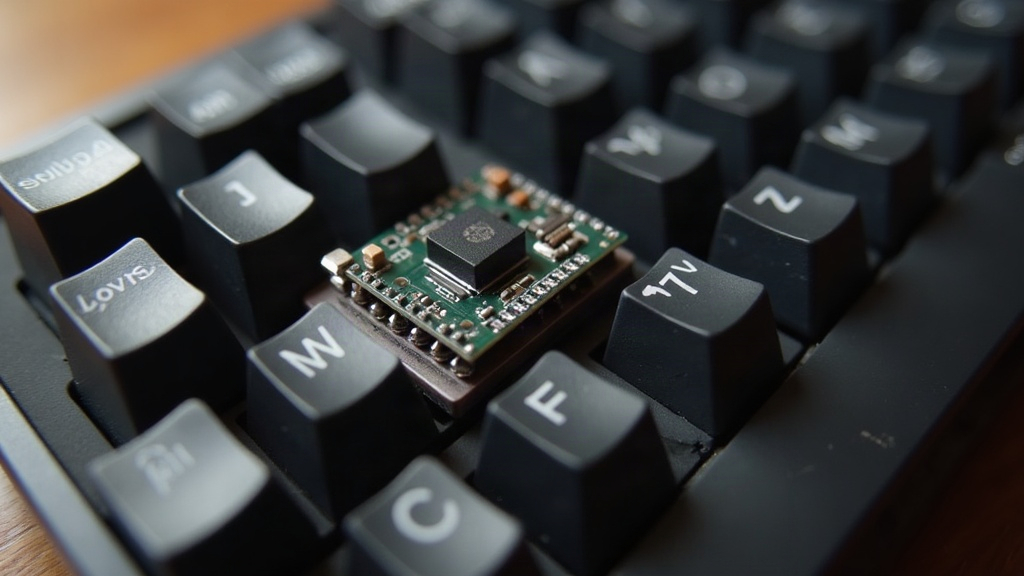
If your wireless custom keyboard suddenly refuses to charge, won’t power on, or only springs to life when you wiggle the battery wire just right, nine times out of ten you’re looking at a busted JST battery connector. This tiny two-pin plug is probably the single most fragile component on any wireless build, and the good news is that replacing it is a soldering job most people can knock out in under 30 minutes, assuming you’ve got the right tools and a steady hand.
What Is a JST Connector and Why It Breaks
JST (Japan Solderless Terminal) connectors are those small white plastic plugs linking your LiPo battery to the keyboard’s PCB. You’ll find them everywhere on hot-swap wireless boards, think NuPhy Air75, the Keychron K-series, and countless group-buy custom PCBs, because they let builders yank the battery out without ever touching a soldering iron.
Here’s the catch though: these connectors are only rated for a limited number of insertion cycles, and the wires feeding them are thin. They fail for a handful of predictable reasons:
- Repeated plugging and unplugging during builds or battery swaps
- Wires getting pinched shut when the case closes
- Accidental tugging while routing cables inside a cramped chassis
- Cold solder joints left over from factory assembly
- Corrosion from humidity or the occasional spilled drink
Classic symptoms? A keyboard that charges fine but won’t turn on, random power cuts out of nowhere, or a battery reading a flat 0V on your multimeter despite being topped off.
Tools and Parts You’ll Need
- Replacement JST-PH 2.0mm connector (male or female, matching your existing plug, most boards run a 2-pin PH-style connector)
- Soldering iron, temperature-controlled, dialed to 300–320°C
- Thin rosin-core solder (0.6mm handles small pads well)
- Flux pen
- Wire strippers or a sharp hobby knife
- Tweezers
- Heat-shrink tubing or electrical tape
- Multimeter (for confirming polarity and continuity)
Pre-crimped JST-PH pigtail cables run just a few dollars from suppliers like Adafruit, Pololu, or generic AliExpress listings. Search “JST PH 2.0 2-pin cable” and you’ll have a dozen compatible options within seconds.
Step-by-Step Replacement Guide
1. Discharge and Disconnect the Battery
Power the keyboard off completely, then disconnect the battery from the PCB before touching anything else. Never, ever solder near a connected LiPo battery. A short circuit here isn’t just annoying, it can start a fire.
2. Identify Polarity
Before you cut a single wire, grab a multimeter or check the PCB silkscreen for ”+” and ”-” markings. JST wires are almost always red for positive and black for negative, but don’t just assume. Verify it. Get the polarity backwards and you’ll fry the PCB, the battery, or both.
3. Remove the Damaged Connector
- If the connector’s soldered straight onto the PCB, heat each pad and lift the connector gently with tweezers.
- If it’s only on the battery wire, snip the wire about 1cm from the broken connector. Leave enough slack to strip and re-solder later.
4. Prepare the New Connector
Strip roughly 2–3mm of insulation off each wire. Twist the strands tight, then apply a touch of flux and solder, a process called “tinning.” This keeps the wire holding its shape and makes the final solder joint go on clean.
5. Solder the New JST Connector
- Match red to red (+) and black to black (-). No exceptions.
- Heat the pad or wire joint for just 1–2 seconds, then feed in the solder. Don’t linger with the iron; PCB pads lift off surprisingly easily if you overheat them.
- Slide heat-shrink tubing over each finished joint and shrink it with the side of your iron, or a lighter held at a safe distance.
6. Test Before Reassembly
Reconnect the battery and power the keyboard on before you even think about closing the case. Run through the basics:
- Does it power on normally?
- Does it charge over USB?
- Is Bluetooth or 2.4GHz pairing stable?
Everything checking out? Route the wires clear of any pinch points, then button the case back up.
When to Avoid DIY Repair
Still under warranty? Send it back instead of reaching for the iron, cracking the case open usually voids coverage on the spot. And if the battery itself looks swollen, has a puncture, or gives off a weird smell, don’t just swap the connector, replace the whole battery and take the old one to a proper recycling point. That’s not a corner worth cutting.
Conclusion
Replacing a broken JST battery connector ranks among the most common, and most fixable, wireless keyboard repairs out there. Armed with a soldering iron, a replacement JST-PH cable, and careful attention to polarity, you can have full wireless function back on your custom board faster than it would take to order a whole new PCB. Just keep three things in mind: disconnect the battery first, check polarity twice, and test everything before you seal the case shut.