Why Your Wireless Mechanical Keyboard Disconnects Near a USB 3.0 Dock
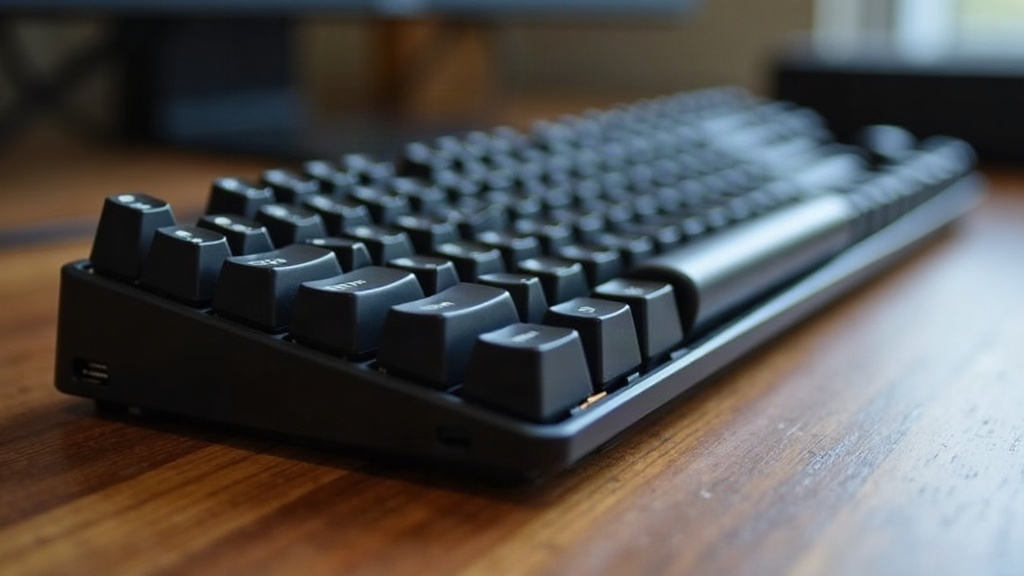
If your wireless mechanical keyboard keeps dropping out, stuttering, or eating keystrokes whenever a USB 3.0 dock is nearby, you’re not losing your mind. This is a real, documented problem, and no, your keyboard isn’t broken. Here’s what’s actually going on, and how to fix it for good.
The Real Cause: USB 3.0 Radio Frequency Interference
USB 3.0 (along with 3.1 and 3.2) pushes data at seriously high frequencies. The side effect? Those ports and cables leak electromagnetic noise right into the 2.4GHz to 2.5GHz band, which happens to be exactly where these devices operate:
- 2.4GHz wireless keyboard/mouse dongles
- Wi-Fi (2.4GHz band)
- Bluetooth devices
This isn’t some obscure fluke. Intel has studied it. So have several university research teams. The conclusion is pretty consistent: USB 3.0 cables and hubs behave like accidental antennas, spraying broadband noise straight into the same frequency range your wireless peripherals rely on.
Why Docks Make It Worse
Docks tend to be the worst culprits, and for a few clear reasons:
- They cram several USB 3.0 ports into one compact housing, which just multiplies the noise sources
- They usually sit right on the desk, often inches from your keyboard’s dongle
- Many use cheap, poorly shielded cables, which leak far more RF than properly shielded ones
- They’re running nonstop once a monitor, SSD, or webcam is plugged in, so the interference never really stops
How to Tell If This Is Your Problem
Before you start throwing fixes at it, check whether the symptoms actually line up:
- Dropouts show up only when the dock is plugged in and powered
- Moving the dongle farther from the dock cuts down or kills the dropouts
- 2.4GHz dongle connections suffer more than Bluetooth ones (though Bluetooth isn’t totally immune either)
- Unplugging devices from the dock one by one helps, usually it’s the external SSD or some other high-bandwidth device that’s the worst offender
Fixes That Actually Work
1. Use a USB Extension Cable for the Dongle
This is the single best fix, hands down. Grab a short USB extension cable and move your keyboard’s 2.4GHz receiver 1-2 meters away from the dock. Distance matters a lot here, even something as small as 30cm can noticeably cut the interference.
2. Switch to Bluetooth Mode (If Available)
A lot of modern mechanical keyboards (Keychron, Logitech, Razer, to name a few) support both 2.4GHz and Bluetooth. Bluetooth hops across frequencies constantly, which makes it far less sensitive to interference than a plain 2.4GHz dongle. It won’t guarantee zero issues, but it usually holds up better.
3. Get a Shielded USB 3.0 Dock or Cables
A lot of budget docks skip EMI shielding entirely just to save a few bucks. When shopping for a replacement, look for:
- Docks that specifically advertise “shielded USB 3.0 ports”
- Ferrite cores or chokes on the cables (those cylindrical bumps near the connectors)
- Reviews that mention “no wireless interference” in the comments
4. Change Your Keyboard’s Wireless Channel
Some 2.4GHz keyboards let you pick a channel manually through software like Logitech Options or Razer Synapse. Shifting away from the most congested part of the spectrum can help a bit, though don’t expect miracles since the interference itself is broadband, not confined to one channel.
5. Rearrange Your Desk Setup
Sometimes the simplest move is the best one:
- Tuck the dock behind your monitor, away from the dongle
- Keep the dongle on the same side as your typing hand, clear of cable clutter
- Don’t park the dock directly under or beside your keyboard
When to Consider a Wired Keyboard
If you’ve tried everything above and the interference still won’t quit, and you genuinely need rock-solid reliability (think competitive gaming or hours of professional typing), a wired keyboard just sidesteps the entire issue. Plenty of enthusiasts keep one around specifically as a backup for setups where interference is unavoidable.
Conclusion
Random disconnects near a USB 3.0 dock aren’t bad luck. They come from well-documented RF interference in the 2.4GHz band that USB 3.0 hardware generates whether it means to or not. The quickest fix is simply moving your dongle farther from the dock with an extension cable. The more permanent fix is switching to Bluetooth, or upgrading to properly shielded cables and docks. A few small tweaks, and your wireless setup can go back to being fast, responsive, and dropout-free.